

📝 Introduction
Learning Microsoft Server is one of the best ways to build real IT skills.
This Windows Server lab setup guide will help you practice hands-on and prepare for CompTIA, Microsoft, or IT Support roles.
Your ad will appear here once approved.
Whether you’re preparing for CompTIA or just want real IT experience, you can build and practice your own Windows Server lab right at home — no costly hardware required.
In this guide, you’ll learn how to set up a Windows Server lab using your PC or laptop, step by step.
⚙️ What You’ll Need
Before you begin, make sure you have the following ready for your Windows Server lab sBefore you begin, make sure you have the following ready for your Windows Server lab setup:
⚡ Stable internet connection:
💻 A computer with 8 GB RAM or more (16 GB recommended)
🧱 Windows 10/11 operating system
📦 VirtualBox or Hyper-V (free virtual machine software)
💿 A Windows Server ISO file (you can use Windows Server 2022 Evaluation from Microsoft’s site)
- 💻 A computer with 8 GB RAM or more (16 GB recommended)
- 🧱 Windows 10/11 operating system
- 📦 VirtualBox or Hyper-V (free virtual machine software)
- 💿 A Windows Server ISO file (you can use Windows Server 2022 Evaluation from Microsoft’s site)
- ⚡ Stable internet connection
🪟 Step 1: Download and Install VirtualBox for Your Windows Server Lab Setup
- Step 1: Download and Install VirtualBox for Your Windows Server Lab Setup
- Go to virtualbox.org.
- Click Downloads → Choose your OS (Windows).
- Run the setup file and install it using the default options.
- Next, open VirtualBox — this is where you’ll create your virtual server.
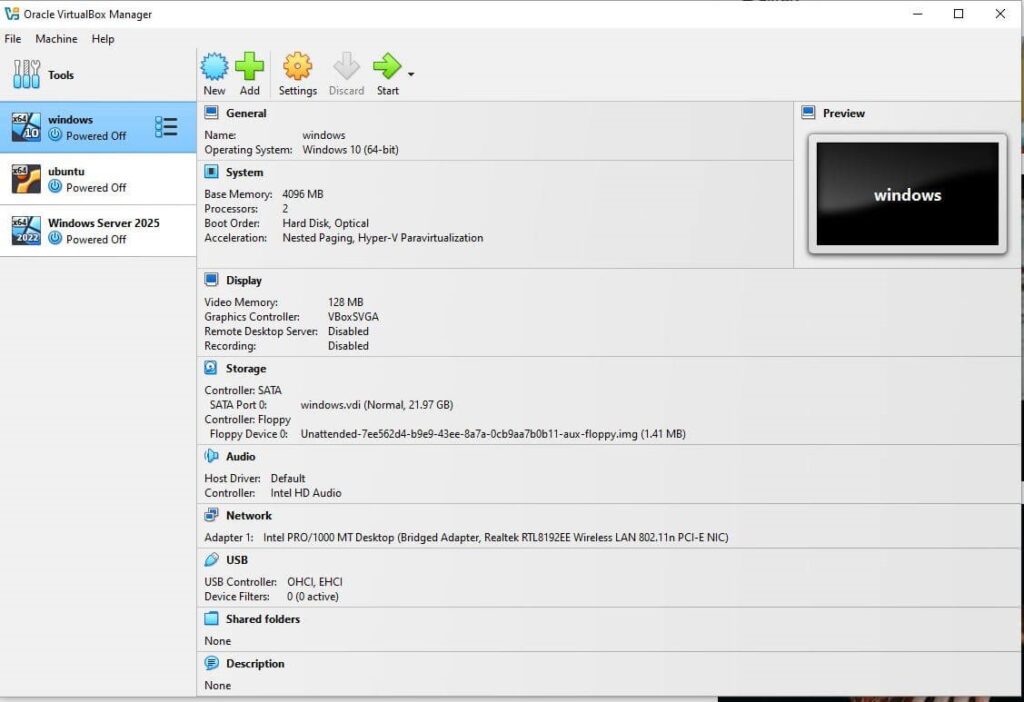
VirtualBox main dashboard where you’ll manage your Windows Server and client VMs.
🧰 Step 2: Get the Windows Server ISO for Your Windows Server Lab Setup
Visit Microsoft’s official page →
👉 Download Windows Server Evaluation
Select Windows Server 2022 or 2025 (Preview)
Choose ISO Download → Fill in basic info → Download.
💡 The ISO file is like a virtual DVD — it’s what you’ll use to install Windows Server inside VirtualBox.
🧩 Step 3: Create a New Virtual Machine
Next, open VirtualBox and create your new VM:
- Click New.
- Name it something like ServerLab-DC1.
- Choose:
- Type: Microsoft Windows
- Version: Windows 2022 (64-bit)
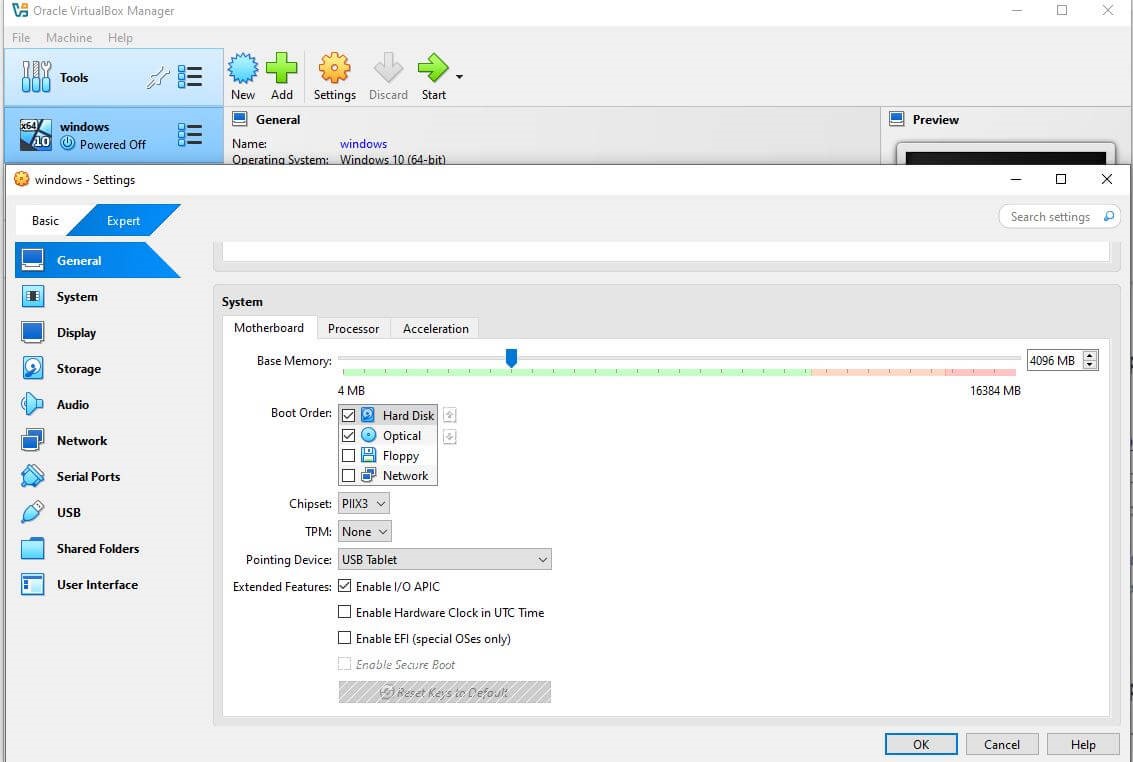
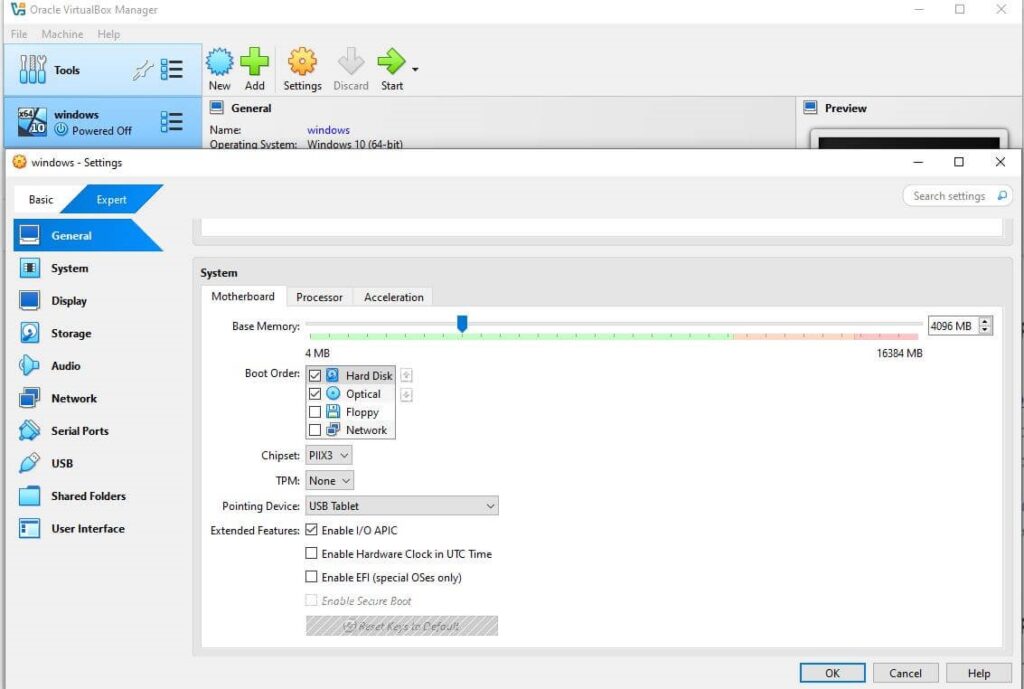
- Assign 4 GB RAM (minimum 2048 MB if your system is low on memory).
- Create a virtual hard disk → 60 GB recommended → VDI → Dynamically allocated.
🔌 Step 4: Mount the ISO and Install Windows Server
- Go to your new VM → click Settings → Storage.
- Under “Empty,” click the CD icon → choose Select a disk file → pick your Windows Server ISO.
- Start the VM → the Server setup will begin.
After that, install the Windows Server ISO and start the setup process:
- Language: English (United States)
- Edition: Standard Evaluation (Desktop Experience)
- Installation: Custom → Install Windows Only (Advanced)
🕐 Wait until installation completes — it might take 10–20 minutes.ht take 10–20 minutes.
🧑💻 Step 5: Configure Your Windows Server Lab Setup
After installation:
- Set a strong Administrator password.
- Once logged in, open Server Manager to begin managing your lab roles.
- In addition, you can add extra roles like DHCP or DNS to expand your Windows Server lab setup.
You can now practice:
- Creating users in Active Directory
- Setting up DNS / DHCP
- Managing Group Policy
- Adding client PCs (optional)
💡 This is where you’ll start learning real IT admin skills — just like in a professional environment!rning real IT admin skills — just like in a professional environment!
🧠 Optional: Add Client PCs
If you want a full lab:
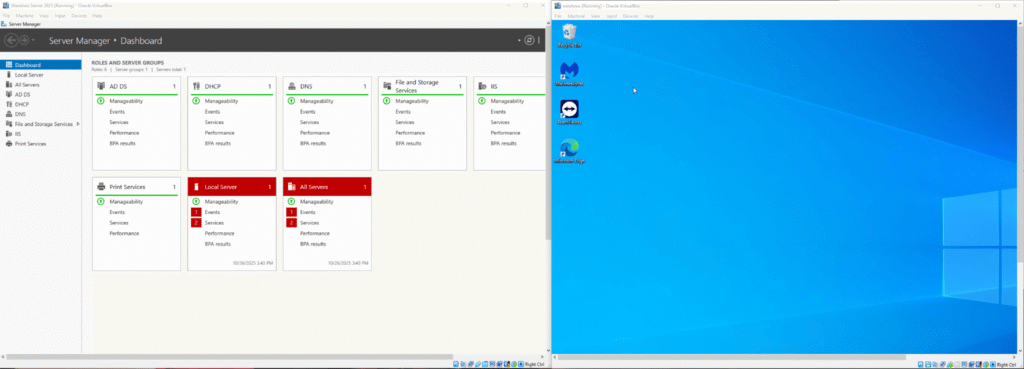
For example, you can connect your Windows 10 client PC to the same network and test domain logins.
- Create another virtual machine and install Windows 10 or 11 as your client PC.
- Connect it to the same internal network as your Server VM.
- Join it to the domain using Active Directory.
🧠 Optional: Add Client PCs to Your Windows Server Lab Setup
If you want a full lab:
- For example, create another VM and install Windows 10 or 11 as your client PC.
- Connect it to the same internal network as your Server VM.
- Join it to the domain using Active Directory.
⚡ Step 6: Take Snapshots
Snapshots allow you to save your progress before making big changes.
If something breaks, you can restore instantly.
- Go to VirtualBox → Machine → Take Snapshot
💡 Always take a snapshot before installing new roles or features!
🎯 Conclusion
Setting up a virtual lab is the best and most affordable way to learn Windows Server at home.
You’ll gain real-world experience with Active Directory, DNS, DHCP, and Group Policy — all critical skills for IT jobs.
This Windows Server lab setup is one of the easiest ways to practice IT skills at home.
As a result, you’ll gain hands-on experience for CompTIA, Microsoft, or IT Support roles.
Finally, test everything to make sure your Windows Server lab setup runs smoothly before moving on to the next lab.
💡 Want more beginner-friendly IT labs? Read my next guide: How to Create Users in Active Directory (Step-by-Step) — the perfect next step for your Windows Server lab.
🔗 Bonus Resources
- Microsoft Evaluation Center – Server ISO
- VirtualBox User Manual
- ZumuniTech YouTube Channel — Watch step-by-step tutorials
🏷️ SEO Keywords
Windows Server 2022 lab setup, VirtualBox server practice, Windows Server tutorial for beginners, Active Directory lab, CompTIA lab setup, Windows Server lab setup



[…] Strong Windows Server hardening and patch management greatly reduce these risks.https://zumunitech.com/how-to-set-up-a-windows-server-lab-setup-at-home-step-by-step-guide-2025/ […]