
Introduction
Remote Desktop Protocol (RDP) is one of the most essential skills you can learn when starting a career in IT Support or Helpdesk. It allows you to connect to another computer and control it exactly as if you were sitting in front of it. Because of this, RDP is widely used by technicians to troubleshoot problems, install software, configure settings, and support clients remotely.
Your ad will appear here once approved.
Although RDP may look a little technical at first, you will quickly realize that the setup is very simple when you follow the right steps. Additionally, once you practice it a few times, it becomes one of the easiest and most powerful tools in your IT toolkit. In this guide, we will walk through everything together — slowly, clearly, and with real screenshots from your own Windows devices so you never get lost.
You will also learn best practices, security recommendations, and common troubleshooting steps, which makes this guide valuable not only for beginners but also for anyone preparing for IT-helpdesk roles or CompTIA certifications.
Table of Contents
- What Is Remote Desktop Protocol (RDP)?
- How RDP Works (Simple Explanation)
- Requirements (Windows 10/11)
- Enable RDP on Your Host PC
- Allow Remote Desktop Through Windows Firewall
- Find Your Computer Name
- Connect From Another Computer (Client PC)
- Log In With Credentials
- Enable Full Control Settings
- LAN vs Internet RDP
- Security Best Practices
- Common RDP Errors & Solutions
- RDP vs AnyDesk vs TeamViewer
- Best Use Cases for RDP
- Frequently Asked Questions
- Conclusion
1. What Is Remote Desktop Protocol (RDP)?
Remote Desktop Protocol (RDP) is a built-in Microsoft feature that lets you remotely control another Windows computer. Unlike third-party apps like AnyDesk or TeamViewer, RDP is integrated directly into Windows, which means it usually offers smoother performance and better security. Additionally, businesses prefer RDP because it works extremely well with Active Directory, domain environments, and enterprise-level networks.
In simple words:
RDP lets you open and use another computer from anywhere — just like magic.
Because of this, nearly all IT-helpdesk professionals use RDP every day.
2. How RDP Works (Beginner-Friendly Explanation)
To keep things simple, RDP has two sides:
- Host PC → The computer you want to control
- Client PC → The computer you are connecting from
Once the connection begins, the Host PC’s screen automatically locks for security, and the Client PC gains full control. This means you can move the mouse, type on the keyboard, open applications, install software, and troubleshoot issues exactly as if you were sitting at the Host PC in person.
Additionally, RDP uses strong encryption, which ensures your remote sessions stay private and secure.
3. Requirements (Windows 10/11)
Before you set up RDP, make sure the Host PC meets these conditions:
✔. Windows 10/11 Pro, Enterprise, or Education
✔ RDP feature enabled
✔A Windows account with a password
✔ A stable connection on both devices
✔. Same WiFi network (for easiest setup)
⚠ Windows Home cannot host RDP by default, but it can connect as a client.
Although these may look like many requirements, the setup becomes extremely easy once you follow the steps carefully.
4. Enable RDP on Your Host PC
(Insert screenshots exactly where noted. Alt text included.)
Enabling Remote Desktop is the first step, and fortunately, Windows makes this very simple. Additionally, once you enable it, you rarely need to touch this setting again.
Step 1 — Open System Settings
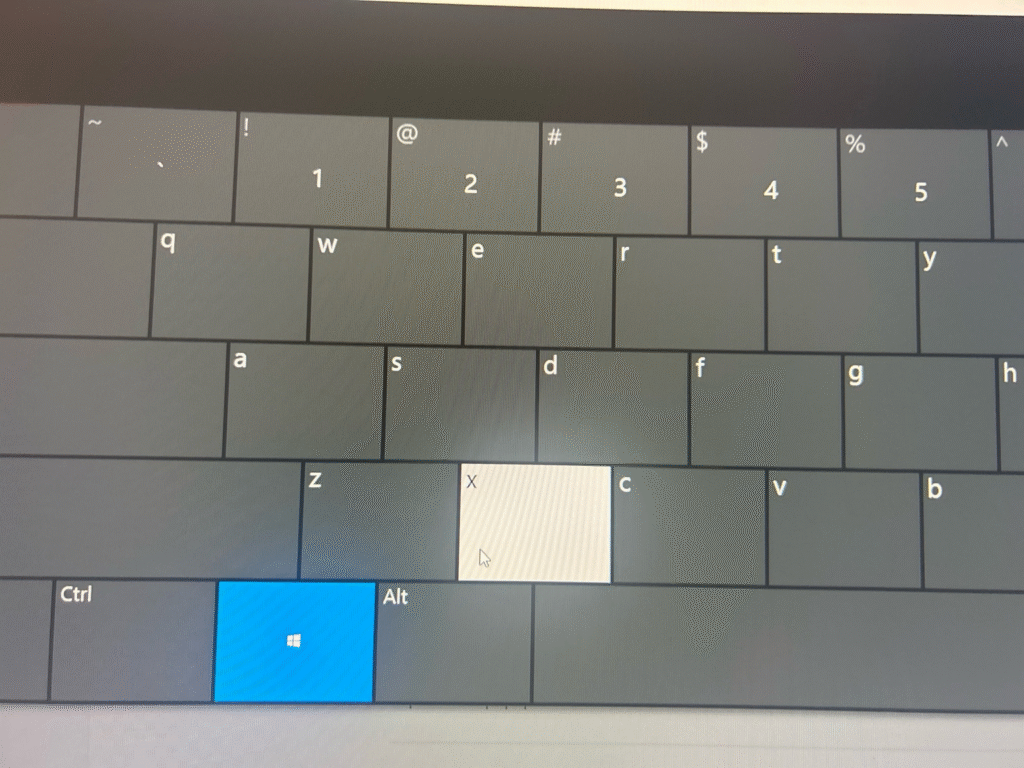
Right-click the Start button → Select System or windows + x as you seen at image bottom
Step 2 — Open Remote Desktop Settings
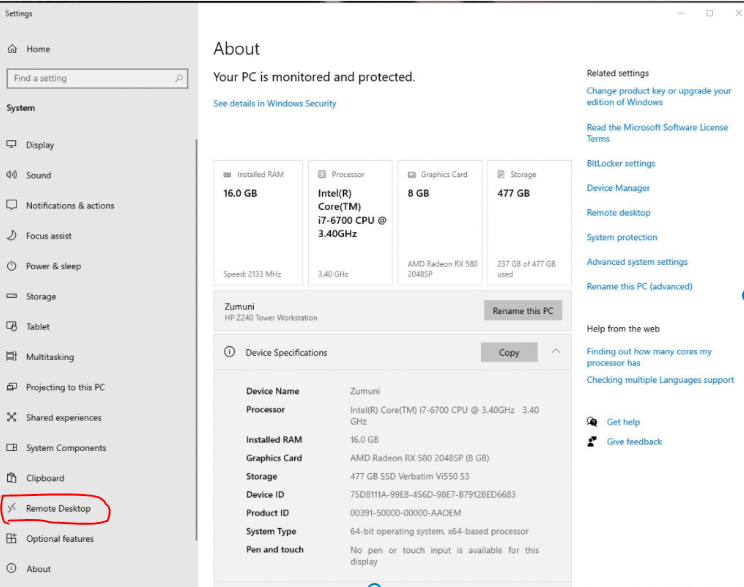
In the left menu, click Remote Desktop.
Step 3 — Turn Remote Desktop ON
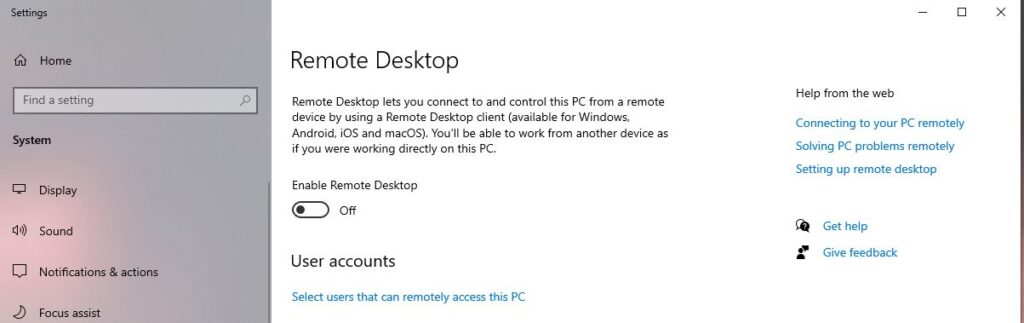
Toggle the switch from Off → On.
Windows will show a confirmation window.
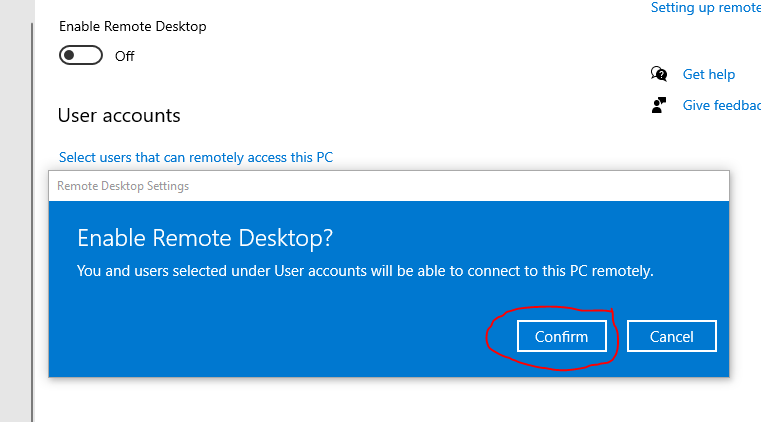
Click Confirm.
Once complete, scroll down and note your PC name. You will use this later when connecting.
5. Allow Remote Desktop Through Windows Firewall
Windows usually enables this automatically, but it is always a good idea to verify it. Otherwise, the connection may fail.
Step 1 — Open Allowed Apps
Search → Allow an app through Windows Firewall
Step 2 — Enable Remote Desktop
Make sure both boxes (Private + Public) are checked.
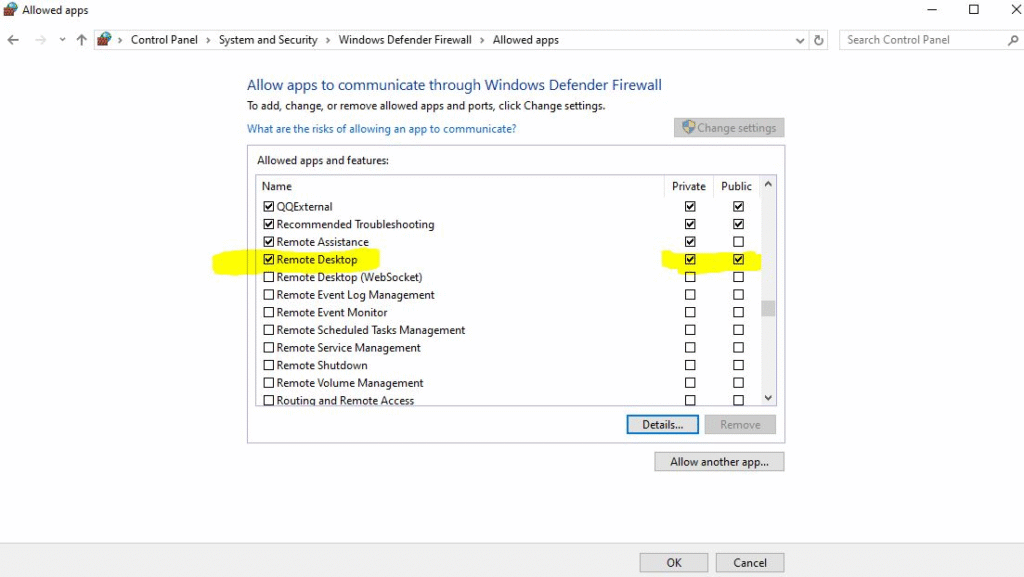
This ensures your PC accepts incoming RDP connections smoothly.
6. Find Your Computer Name
To connect from another PC, you need the exact host computer name. Fortunately, Windows displays this clearly.
Scroll to:
“How to connect to this PC”
You will see something like:
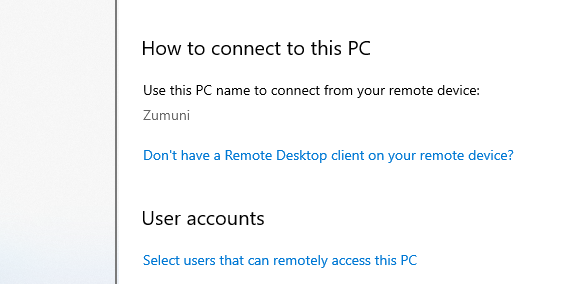
Use this PC name:Zumuni
Connect From Your Laptop (Client PC)
Therefore that your host PC is ready, the next step is connecting from the second computer. Thankfully, Windows makes this process extremely simple, and once you try it for the first time, you will immediately understand how convenient RDP can be.
Step 1 — Open the Run Box
Press: Windows + R
📌 Insert Screenshot #7 (On-screen keyboard with Windows + R highlighted)
Alt text: “Windows on-screen keyboard showing Windows + R shortcut for opening Run dialog”
This shortcut instantly opens the Run window, which is one of the fastest ways to launch the RDP client.
Step 2 — Type mstsc
In the Run box, type:
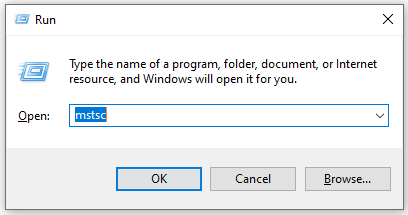
Click OK.
Windows will open the Remote Desktop Connection window.
Step 3 — Enter the Host PC Name
In the RDP window, enter the exact PC name you noted earlier:
✔. Example: Zumuni
✔ This must match exactly
✔ Otherwise, RDP cannot find the host
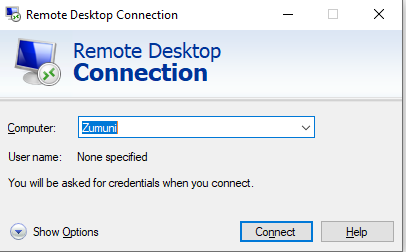
Click Connect.
Step 4 — Connecting…
You will now see a loading bar showing that your laptop is trying to reach the host PC.
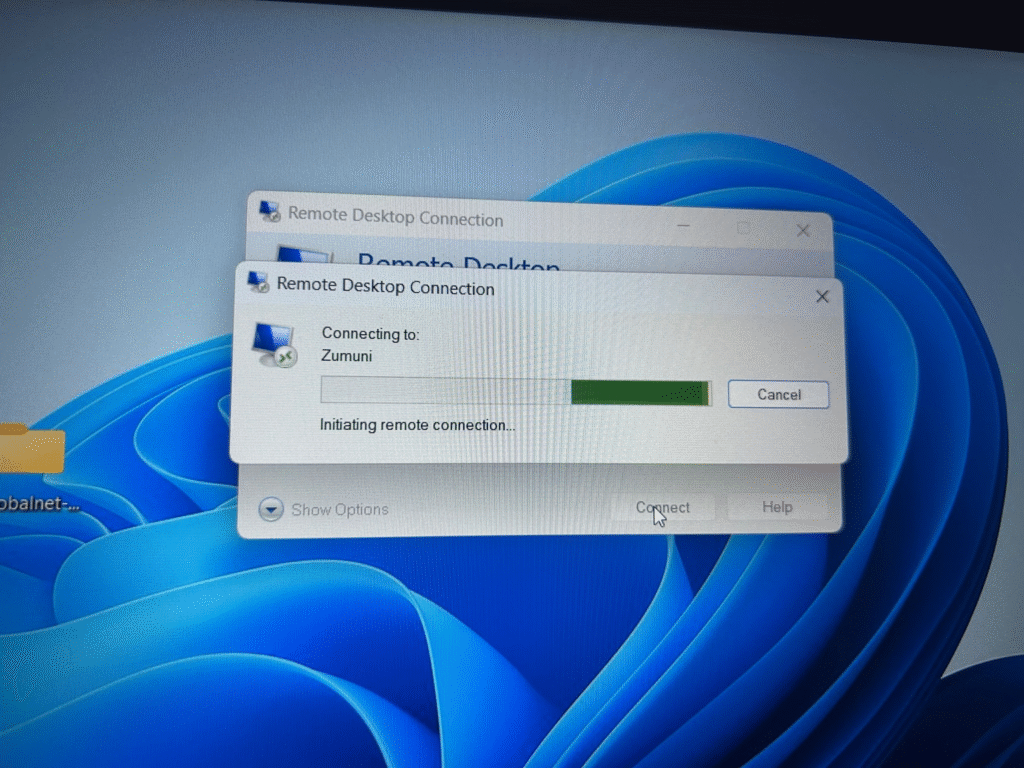
If everything is configured correctly, Windows will now ask you to log in.
⭐ 8. Log In With Your Windows Credentials
This is the step that verifies access. Most people make mistakes here, so let’s make it extremely clear.
✔ You must enter:
- Your Windows account username
- Your Windows password
(Not your PIN)
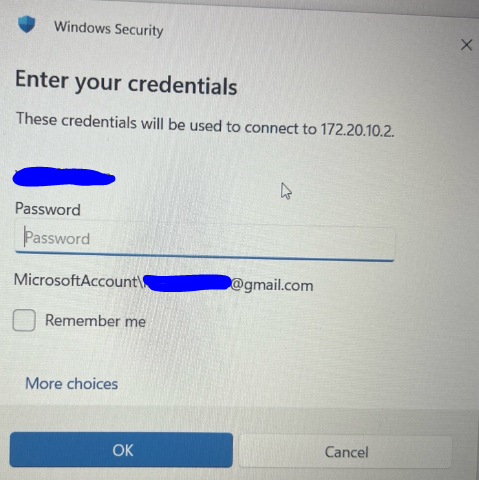
⚠️ Important:
You cannot use your 4-digit PIN for RDP.
Microsoft does not allow PIN authentication over remote connections.
You must use:
✔ The password of your Microsoft account
OR
✔ The password you set when you installed Windows
If you forgot it, you can reset it from login screen → “I forgot my password.”
Once you enter the correct credentials, RDP will fully load the remote desktop. You will now see the other computer’s screen inside a window on your laptop — just like you are sitting in front of it.
⭐ 9. Enable Full Control & Improve the Remote Experience
Most users stop here, but IT professionals always check these additional settings to avoid issues later.
✔ On the host PC:
Go to:
Settings → Remote Desktop
Make sure:
- Network Level Authentication (NLA) is ON
- “Keep my PC awake for connections” is ON
- Clipboard redirection is enabled (so you can copy/paste)
- Printers and drives access is allowed (optional but helpful)
These settings ensure smoother performance and fewer connection problems.
⭐ 10. LAN vs Internet RDP (Very Important Differences)
Understanding where RDP works is extremely important, especially if you want to use it for real helpdesk situations.
A) RDP Over Local Network (LAN)
This type of connection works when both devices are on the same Wi-Fi or Ethernet network.
✔ Pros:
- Fast
- No port forwarding
- Very stable
- Beginner-friendly
✔ When to use:
- Home lab
- Two PCs in the same house
- Office internal network
LAN RDP is the easiest method, and it works instantly without extra configuration.
B) RDP Over the Internet
This is more advanced and requires strong security.
To use RDP outside your home, you need:
- Your public IP address
- Port forwarding (TCP 3389) on your router
- A strong Windows password
- A VPN for safety (recommended)
⚠️ Important Warning:
Never expose port 3389 directly to the internet without protection. Attackers constantly scan it.
If you need remote access while traveling or away from home, always use:
✔ A VPN
OR
✔ Cloudflare Tunnel
OR
✔ ZeroTier
This ensures your PC stays protected.
⭐ 11. Security Best Practices (Must Follow)
Since RDP gives full control of your PC, security must be taken seriously. Fortunately, following a few best practices dramatically improves safety.
✔ 1. Use a strong password
Short passwords get hacked easily. Use 10+ characters.
✔ 2. Limit users who can connect
Only allow accounts you trust.
✔ 3. Keep your PC awake but locked
So it accepts connections but stays secure.
✔ 4. Never expose RDP publicly
Always use VPN or tunneling if connecting from outside.
✔ 5. Keep Windows updated
Many RDP vulnerabilities are patched through updates.
✔ 6. Disable RDP when you’re not using it
Just turn the toggle OFF until you need it again.
By following these steps, your RDP access stays reliable and much safer.
12. Common RDP Errors and How to Fix Them
Although RDP is reliable, you may occasionally face issues. Fortunately, most of them are easy to fix once you know what they mean.
“Can’t connect to the remote PC”
This is the most common RDP error. It usually appears when:
- Remote Desktop is not enabled on the host
- The PC name or IP is incorrect
Fix:
Double-check the RDP toggle, confirm the PC name, and verify both devices are on the same network.
Black Screen After Connecting
Sometimes RDP loads but only shows a black screen.
This typically happens because of display or driver problems.
Fix:
- Disable bitmap caching
- Update your GPU driver
- Try reconnecting
As a result, the screen should load normally.
“The user does not have permission to access this computer”
This error appears when the account isn’t allowed to use RDP.
Fix:
- Go to Remote Desktop Settings
- Select User Accounts
- Add your Windows username
After adding the account, the connection should work immediately.
Slow RDP Performance
A slow connection often happens because of network issues.
Fix:
- Use Ethernet instead of WiFi
- Close heavy applications
- Reduce display resolution in RDP settings
Consequently, performance will noticeably improve.
“Your credentials did not work”
This happens when the wrong username or password is entered.
Fix:
- Use your Windows account password, not your PIN
- If using a Microsoft account, enter your full email
- Make sure the account isn’t locked
Once corrected, the RDP login should authenticate normally.
13. RDP vs AnyDesk vs TeamViewer (Complete Comparison)
Since many new IT learners get confused about which tool to use, the table below makes the differences clear.
| Feature | RDP | AnyDesk | TeamViewer |
|---|---|---|---|
| Beginner-friendly | ★★★☆☆ | ★★★★☆ | ★★★★★ |
| Works on local network | Yes | Yes | Yes |
| Works over internet | Difficult | Easy | Easy |
| Requires installation | No | Yes | Yes |
| Best for IT support | Yes | Sometimes | Yes |
| Domain/enterprise support | Yes | No | No |
| Speed | Fast | Very fast | Medium |
| Security | High | High | Medium |
| Setup difficulty | Medium | Easy | Easy |
As shown above, RDP is best for professional IT support, especially when working inside a Windows environment or domain network.
14. Best Real-World Use Cases for IT Helpdesk
Because RDP mirrors the real desktop, it is used daily in IT departments. Here are the most important tasks you’ll perform:
- Installing and updating software
- Checking Event Viewer for system logs
- Troubleshooting errors remotely
- Resetting passwords or unlocking accounts
- Accessing servers without physically going to them
- Configuring printers, policies, and settings
- Managing domain-joined machines
Therefore, mastering RDP gives you a strong advantage when applying for helpdesk jobs.
📌 Internal Link Recommendation (Put this inside the post):
If you’re beginning your IT journey, read my guide:
👉 5 Beginner-Friendly Tech Certifications to Start in 2025
https://zumunitech.com/5-beginner-friendly-tech-certifications-to-start-with-in-2025/
15. Frequently Asked Questions (FAQ)
Does RDP work on Windows Home?
You can connect from Windows Home, but you cannot host RDP sessions without modifications.
Can I use RDP from my phone?
absolutely, Microsoft offers official Android and iOS apps. Additionally, they work exactly like the desktop RDP client.
Is RDP safe?
It is safe as long as you use strong passwords, NLA, and firewall rules.
However, never expose RDP port 3389 directly to the internet.
Does RDP work over WiFi?
off course, as long as both devices are connected to the same network.
Can I use RDP on domain computers?
Absolutely — enterprises depend on RDP for managing servers and remote employees.
16. Conclusion
Remote Desktop Protocol (RDP) is one of the most valuable tools for IT support. Although it may seem complicated the first time, each step becomes easier once you understand how the host and client communicate. Additionally, using real screenshots helps you build confidence, especially during your CompTIA A+ or Network+ studies.
Now you know how to:
- Enable RDP
- Allow it through Windows Firewall
- Find your computer name
- Connect from another device
- Fix common connection errors
- Apply security best practices
As a result, you are now capable of supporting family, clients, or your own systems from anywhere. If you continue practicing, you’ll be ready for real helpdesk work sooner than you expect.
⭐ Want More Tech Tutorials?
If you’re learning IT Support, Networking, or Windows administration, check out more step-by-step guides on ZumuniTech.
👉 Explore more tutorials: https://zumunitech.com/blog/
👤 About the Author — Yussuf Hassan (ZumuniTech)
Yussuf is an IT support student specializing in Windows Server, Networking, and Cybersecurity labs. He shares real screenshots, beginner-friendly tutorials, and hands-on troubleshooting steps to help others break into IT.
Follow his journey on Instagram, TikTok, and YouTube — all under ZumuniTech.